


First: Sign up and initial setup
- Go to the Tradify website and start a free trial (14 days, no credit card required) for the web or mobile version.
- During the “Getting Started” flow you’ll be asked to enter basic company info — e.g. number of staff, company name, and (if relevant) VAT number.
- (Optional but useful) Connect Tradify to your accounting software — e.g. Xero, QuickBooks Online, etc. — for smoother invoice / bookkeeping workflows.
Disclaimer
Some of the links on this page are affiliate links. This means I may earn a small commission if you click through and make a purchase, at no extra cost to you. I only recommend tools I genuinely believe can help tradespeople run their businesses more efficiently.
⚙️ Configure account settings & business defaults
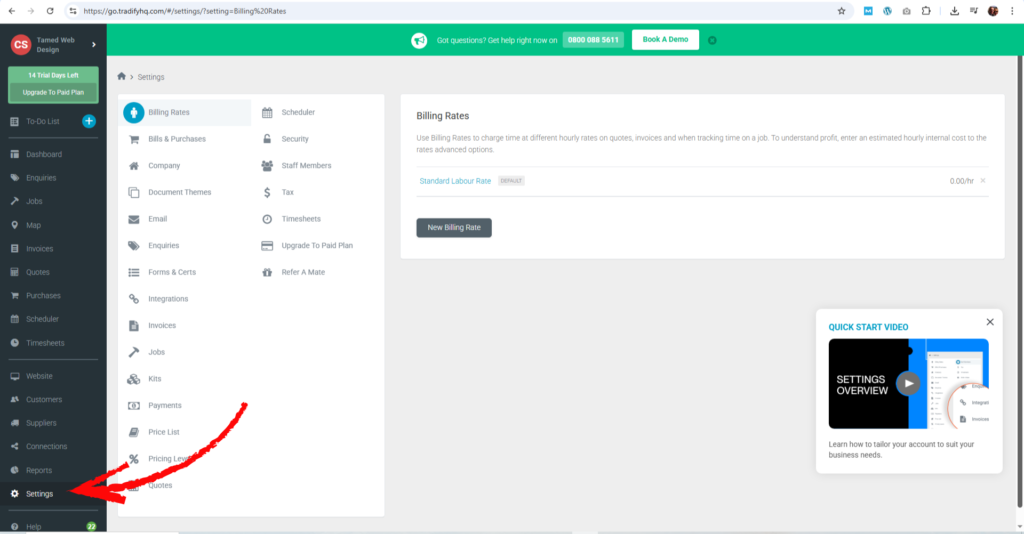
- Under Settings, customise company details (logo, contact info, VAT, etc.), which will reflect on quotes, invoices and reports.
- Set up Billing Rates — e.g. hourly labour rates for different staff types (apprentice vs experienced), weekend rates, etc. This helps with accurate quoting and invoicing.
- Optionally, set up Document Themes so that quotes, invoices, job reports — everything sent to customers — look professional and branded with your style.
🧰 Start using core Tradify features (jobs, quotes, scheduling, invoicing)
Once setup is done, you can begin with these essential workflows:
| Function | What to do / Why it matters |
|---|---|
| Enquiries | Collect customer/job enquiries — either manually or via an enquiry form or email, and store them in Tradify. |
| Quotes / Estimates | Create professional quotes quickly and send them to customers (with your branding). Can also convert quotes into jobs when accepted. |
| Create Jobs | Once a job is confirmed, create a “Job” entry linked to a customer: includes tasks, materials, staff, site address, schedule, notes, and more. |
| Scheduling & Staff Assignment | Use the Scheduler to assign staff, plan work, avoid conflicts, and see who’s working on what — useful for small teams or subcontractors. |
| Time Tracking & Materials Costing | Track labour hours, materials, costs and more against each job. Helps in accurate billing and profit tracking. |
| Invoicing & Payments | Generate and send invoices easily; if payment integration is set up, you can offer online payments, track status, and send reminders automatically. |
📱 Use Tradify on the go — mobile app
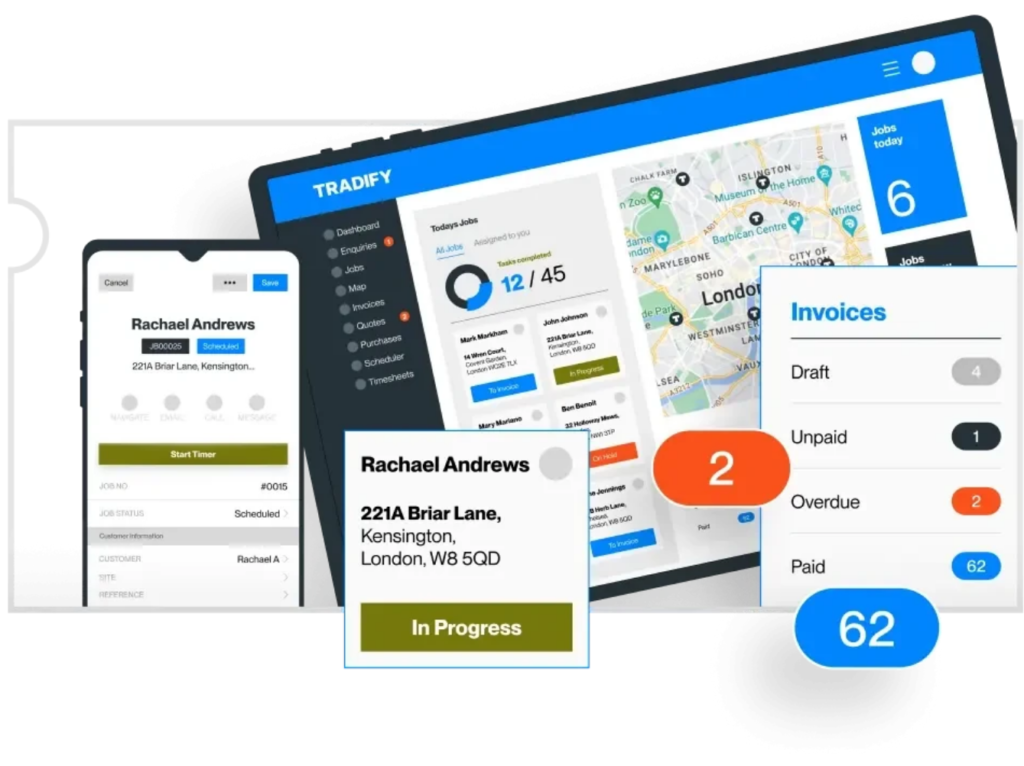
- Tradify has a mobile app (iOS / Android) that syncs with the web — great for on-site work: you can create or update quotes, jobs, invoices, timesheets, even upload photos / notes right from the van.
- On mobile you can also manage enquiries, schedule jobs, and track staff locations — handy if you and your team are often out at customer sites.
🎯 Optional: Add-ons & extra features
- If you want, you can build a basic website via Tradify’s “Instant Website” feature — good if you don’t yet have a website, or want a simple online presence fast.
- As your business grows, Tradify can help with managing subcontractors, recurring jobs, and larger project tracking.
Follow the 30-day “onboarding checklist” for Tradify below (with recommended tasks per week) to help you get up and running smoothly:
30-Day Tradify Onboarding Checklist (Week-by-Week Plan)
Perfect for electricians, plumbers, gas engineers, builders, and ANY trade business.
✅ WEEK 1 — Foundations & Setup
Goal: Get Tradify configured properly so everything works smoothly later.
Day 1–2: Account Basics
- Add your business details (name, phone, logo, VAT settings).
- Set your default document theme (quote + invoice branding).
- Add your team members, subcontractors or user roles.
Day 3: Rates & Pricing
- Add your labour rates (standard hourly, callout, weekend, apprentice etc).
- Add common materials or import a price list if needed.
- Set up margin/markup rules.
Day 4: Accounting Connection
- Connect Xero / QuickBooks Online (if you use them).
This syncs invoices, customers and payments automatically.
Day 5–7: Learn the Core Areas
Spend 30 minutes each on:
- Quotes
- Jobs
- Scheduler
- Invoicing
- Mobile App
You don’t need to master everything, but get comfortable clicking through.
✅ WEEK 2 — Start Using Quotes, Jobs & Scheduling
Goal: Begin using Tradify for real or test jobs.
Day 8–10: Quotes
- Create 3–5 practice quotes.
- Add items, labour, description blocks.
- Send yourself a test quote to see how customers receive it.
Day 11–12: Convert Quotes → Jobs
- Convert each practice quote into a job.
- Add notes, tasks, site photos, attachments.
Day 13–14: Scheduler
- Drag the jobs onto the scheduler.
- Assign yourself or staff.
- Test notifications + calendar syncing.
This builds the habit of running ALL work through Tradify.
✅ WEEK 3 — Time Tracking, Job Costing & Invoicing
Goal: Make sure you can track work and get paid efficiently.
Day 15–17: Time Tracking
On mobile:
- Log hours.
- Test automatic timers.
- Test adding travel time.
Day 18–19: Job Costing
- Add materials to the job.
- Add labour.
- Check the profit/loss view.
This is AMAZING for pricing future work more accurately.
Day 20–21: Invoicing
- Create an invoice from a job.
- Create a progress invoice from a quote (great for big jobs).
- Add payment methods (Stripe, GoCardless if desired).
You’ll now have a complete quote → job → invoice workflow!
✅ WEEK 4 — Streamline, Automate & Go Live Fully
Goal: Use Tradify for ALL real customer work.
Day 22–24: Go Live
Start using Tradify for real:
- New quotes
- All new jobs
- All scheduling
- All invoices
Everything now runs through the platform.
Day 25–26: Automations & Shortcuts
- Set up invoice reminders.
- Create quote templates for common jobs.
- Create material kits (e.g., boiler service kit, fuse board replacement kit).
Day 27–28: Custom Forms & Photos
- Add job sheets, before/after photos, certificates (if relevant).
Day 29–30: Review & Optimise
Ask:
- What took longer than it should?
- Which repeated tasks can you template?
- What would make quoting faster?
- Do you want staff job sheets or vehicle tracking?
Small tweaks now will save you HOURS every month.
🎉 By Day 30 — you’re running a fully organised, professional, and profitable workflow in Tradify!
You’ll be:
- Sending fast, accurate quotes
- Tracking every job
- Scheduling work smoothly
- Logging time + materials
- Sending invoices quicker
- Getting paid faster
Disclaimer
Some of the links on this page are affiliate links. This means I may earn a small commission if you click through and make a purchase, at no extra cost to you. I only recommend tools I genuinely believe can help tradespeople run their businesses more efficiently.